Orbulsion Support
Get help with playing the game, keeping your progress and restoring your lifetime unlock.
Email support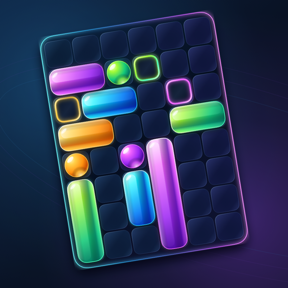
Playing the game
Swipe a spring toward an adjacent orb to launch it, or pull back and release. Guide each orb into a socket of the same colour.
You can undo a move, restart a puzzle from its in-game Settings, or replay an unlocked level from the level map. Sound and haptics can be changed separately in Settings.
Restore your lifetime unlock
- Use the Apple Account that made the original App Store purchase.
- From the main menu, open Settings and choose Restore Purchases under Lifetime access. Use an internet connection if Apple needs to verify the purchase.
The first 10 levels are free. Lifetime access is a one-time purchase that lets you play paid levels as you unlock them. For billing or refund requests, use Apple billing support.
Reset progress or switch devices
To start over, open Settings → Reset progress from the main menu and confirm. This clears saved levels, perfect solutions, achievements and earned cosmetics. Sound, haptics and lifetime access are kept.
Progress is stored on your device. Restoring a purchase on another device restores lifetime access only. Deleting Orbulsion also removes its local progress.
Troubleshooting
- If a puzzle is stuck, try Undo or restart the level. Restarting keeps your campaign progress and earned rewards.
- If the app freezes or behaves unexpectedly, close and reopen it. Check the App Store for an update.
- If the unlock or restoration fails, check your connection and Apple Account, then try again.
Report a problem or ask a question
Email Ravynaptic Studios at ravynapticstudios@gmail.com. For bugs, include the Orbulsion version shown in Settings, your device model and iOS or iPadOS version, the level if relevant, and the steps that led to the problem. A screenshot can help. Please leave out passwords, payment details and full receipts.